My Top 7 Cloudflare Rules for Bloggers


You ever wonder if your website’s biggest speed bottleneck isn’t even your website? Like, maybe it’s just a lazy bouncer letting everyone in slowly instead of waving the VIPs through?
Yeah, well, for most bloggers, that “bouncer” is your server, and if you’re not using Cloudflare Rules, you’re basically asking it to manually check every single ID at the door. It’s a waste of time, resources, and makes your visitors bail faster than a bad ad.
Look, I’ve seen enough “speed up your website” guides that talk about image compression and minifying CSS (which, yes, you should do, go read this: speed up website). But a lot of people miss the absolute, game-changing power of Cloudflare Rules. These aren’t just little tweaks; they’re like giving your website a nitro boost and a bulletproof vest at the same time.
Why Cloudflare Rules Aren’t Just “Settings”

Alright, so Cloudflare is already doing a ton for you, right? CDN, basic security, free SSL. Good stuff. But Cloudflare Rules? That’s where you get to tell Cloudflare, in no uncertain terms, “Hey, for THIS type of traffic, or for THIS specific URL, do EXACTLY this.”
It’s about automation, smart caching, and taking a huge load off your actual server. Think about it: every time someone hits your site, your server has to process that request. Database queries, PHP execution, all that jazz. If Cloudflare can serve a cached version of your page from its edge network (meaning, a server physically closer to your visitor), your server doesn’t even break a sweat. That’s faster load times, better user experience, and a happier server that won’t keel over when you finally hit that traffic spike.
This ain’t just theory, either. We’re talking measurable improvements in Core Web Vitals, lower TTFB (Time To First Byte), and frankly, just a snappier site. If you’re serious about website performance optimization, these rules are as crucial as any other speed hack you’ll find here.
The Core Principle: Edge Caching for Bloggers

Most bloggers run on WordPress, or some other CMS that’s dynamically generated. Meaning, every page is built on the fly. Cloudflare’s edge caching lets you treat those dynamic pages like static files, storing them on its global network of servers.
When a user requests a page, Cloudflare checks its cache first. If it’s there and fresh, BAM! Served instantly. Your origin server (your actual host) is never even touched. This is HUGE. It reduces server load, saves bandwidth, and speeds up your site significantly. Without proper Cloudflare Rules, you’re leaving a lot of that potential on the table.
7 Must-Use Cloudflare Rules for Bloggers (With Real Impact)
These are the rules I set up for pretty much every blog I work on. They’re not rocket science, but they make a world of difference.
Cache Everything for Static Assets & Blog Posts
- The Rule:
yourdomain.com/* - Settings:
Cache Level: Cache EverythingEdge Cache TTL: 1 month(or longer if content changes rarely)Browser Cache TTL: 1 month
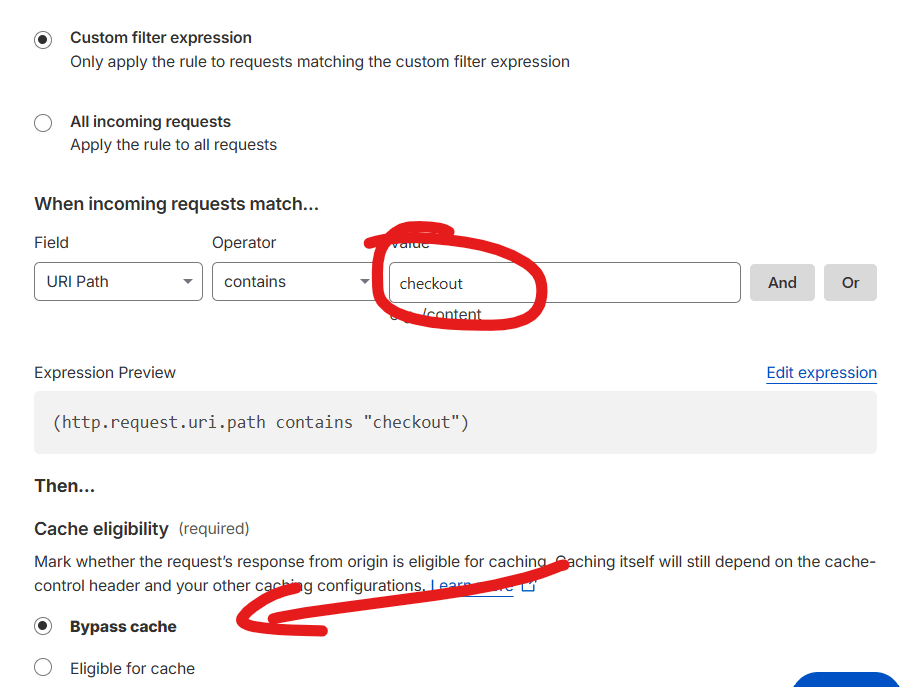
- Why it matters: This is the big one. It tells Cloudflare to cache everything it can. For dynamic content like blog posts, this means Cloudflare serves a static HTML version directly. Just be careful: if you have dynamic elements that need to change often (like a logged-in user’s cart or a checkout page), you’ll need to bypass caching for those specific URLs (see rule #4). For most blogs, this is a massive win.
- Impact: Drastically reduced TTFB, lower server load, faster page loads.
- The Rule:
Always Use HTTPS (Force SSL)
- The Rule:
http://*yourdomain.com/* - Setting:
Always Use HTTPS: On - Why it matters: Security, SEO, trust. Google prefers HTTPS. Period. And honestly, it just looks professional. If you’re still running HTTP, you’re living in the dark ages. This rule ensures all traffic is automatically redirected to the secure version of your site.
- Impact: Better SEO rankings, improved user trust, encrypted connections.
- The Rule:
Smart Redirects for SEO & UX
- The Rule:
yourdomain.com/old-page - Setting:
Forwarding URL (Status Code: 301 - Permanent Redirect, URL: https://yourdomain.com/new-page) - Why it matters: When you change URLs, delete pages, or restructure your site, you must redirect old URLs to new ones. Otherwise, you get 404s, lose link equity, and annoy your visitors. Cloudflare handles this at the edge, so your server isn’t even bothered with the redirect.
- Impact: Preserves SEO value, avoids broken links, better user experience.
- The Rule:
Bypass Cache & Security for Admin Areas
- The Rule:
*yourdomain.com/wp-admin/*(or similar for other CMS) - Settings:
Cache Level: BypassSecurity Level: OffDisable Apps: OnDisable Performance: On
- Why it matters: You DON’T want your admin area cached. Ever. And Cloudflare’s security features (like the WAF or bot protection) can sometimes interfere with legitimate actions in your backend. This rule tells Cloudflare to just leave your admin area alone.
- Impact: Prevents login issues, ensures admin functionality, avoids accidental caching of sensitive data. You can also do this for important dynamic pages like I said above, like your cart & checkout pages if you have them.
- The Rule:
Long Browser Cache TTL for Static Assets
- The Rule:
*yourdomain.com/*.{jpg,gif,png,css,js,webp,svg,ico,pdf,woff,woff2,eot,ttf,otf}(or a similar regex for all common static files) - Setting:
Browser Cache TTL: 1 year - Why it matters: Even if your
Cache Everythingrule covers this, explicitly setting a very long browser cache for static files is smart. Once a user downloads your logo, CSS, or JS, their browser should hold onto it for a long time. This means fewer requests on subsequent visits, making your site feel incredibly fast. - Impact: Faster repeat visits, reduced bandwidth, better Core Web Vitals for returning users.
- The Rule:
Origin Cache Control (When Your Server Is Lazy)
- The Rule:
*yourdomain.com/some-specific-path/* - Setting:
Origin Cache Control: On - Why it matters: Sometimes, your origin server sends weak or no caching headers for certain content, even when it should be cached. This rule lets Cloudflare override those instructions and cache the content anyway. Use with caution for truly dynamic content, but for static sections that your server is being dumb about, it’s a lifesaver.
- Impact: Forces caching for content that should be cached but isn’t, improving overall hit ratio.
- The Rule:
Custom Cache Keys for Dynamic Content (Advanced)
- The Rule:
*yourdomain.com/category/* - Settings:
Cache Level: Cache EverythingEdge Cache TTL: 1 dayCustom Cache Key: Query String, Host, Scheme, URI(and maybe add specific cookies if needed)
- Why it matters: This is for when you have dynamic content that changes based on query parameters (like
?sort=newor?page=2). A simple “Cache Everything” might cacheexample.com/category/and ignoreexample.com/category/?sort=old. Custom Cache Keys tell Cloudflare to cache these different versions separately. It’s powerful but requires a good understanding of your site’s dynamic parts. - Impact: More granular caching for dynamic pages, better cache hit ratio for variations of pages.
- The Rule:
Oh, and if you’re getting a ton of Leadsgo.io spam in your analytics, or bots from China and Singapore that are wasting your GA4 and server, then there are even more security rules you need to add (check out the linked posts for full details).
The Real Performance Benchmarks: What to Expect

Okay, so you’ve set up these Cloudflare Rules. What’s the payoff?
You’re gonna see a significant drop in your Time To First Byte (TTFB). This is how long it takes for your browser to get the first byte of a response from the server. With Cloudflare caching, that first byte comes from an edge server often milliseconds away, instead of your potentially distant host. I’ve seen TTFB drop from 500ms+ to under 50ms with aggressive caching. That’s wild.
Your overall page load times will shrink. Tools like Google PageSpeed Insights, GTmetrix, and WebPageTest will show green across the board for things like server response time, efficient caching policies, and reduction in initial server response time.
You’ll also notice your server load plummet. If you’re on shared hosting, this can prevent your site from getting throttled or suspended during traffic spikes. If you’re on a VPS, you’ll see CPU and RAM usage drop significantly, meaning you can handle more visitors with the same resources. It’s like getting a free hosting upgrade.
Don’t just take my word for it. Run benchmarks before you implement these rules, then run them after. Use the same tools, from the same locations. The numbers don’t lie.
Don’t Just Set It and Forget It (Monitoring & Iteration)

Here’s the thing with any digital marketing tool, Cloudflare included: you can’t just set it and forget it. You gotta monitor. Check your Cloudflare analytics – look at the cache hit ratio. You want that number to be HIGH, ideally 80-90% or more for static content. If it’s low, something’s not caching right, and you need to investigate your rules or your origin server headers.
Also, keep an eye on your site. Browse it regularly. Test different pages, especially after updates. Make sure nothing broke. Sometimes an aggressive caching rule can hide new content or break dynamic functionality. It’s a balance.
Cloudflare is one of those digital marketing tools that just pays for itself in performance gains, even on the free plan. But you gotta use it smart.
Stay hustlin’,
Stephen